
When scheduled on-campus classes are disrupted at short notice, educational technology allows us to maintain continuity for students using alternative delivery methods. Depending on the cause of the disruption, you can choose between asynchronous (self-paced) and synchronous (live online) methods.
Choosing the Right Method
- During Severe Weather & Campus Closures (Synchronous or Asynchronous) If campus is closed due to weather or short-term facilities issues, you are welcome to run live online classes, provided they take place during your originally scheduled timetable slot (synchronous).
- Alternatively, you can record your class ahead of time and share the recording with students via Brightspace if you have concerns about internet connectivity from your home during the scheduled class time (asynchronous).
Key Action Steps for Disruptions
- Notify Students Early: Post an announcement on your VLE/LMS course page as soon as your delivery plan is set.
- Keep Department Lead Updated: Share your alternative delivery plan with your Subject Area Head and Programme Director.
- Preserve standard timetables: Ensure any live interaction strictly respects existing student timetables.
Recommended Asynchronous Options
To make managing disruptions as straightforward as possible, we have highlighted a few quick, accessible methods below to record or share your lecture content asynchronously. These simple approaches are designed to get your teaching material online with minimal setup time.Need a different approach?
We recognise that every module and teaching style is unique. If these simple options don’t fit your needs, please get in touch with us directly. We have a wide range of alternative strategies, tools, and technologies that we can work with you to find a solution that fits your specific module requirements.
Contact us on business.elearning@ucd.ie
To keep delivery straightforward, we recommend a simple two-step asynchronous workflow: recording your lecture content using Zoom and fostering interaction using Brightspace Discussion Forums.
1. Record Content with Zoom
Use Zoom on your laptop or PC to record your lecture videos:- Record your lecture.
- Share on Brightspace: Upload or embed your recorded Zoom session directly onto your VLE/LMS course page.
- Set clear timeframes: Give students a recommended deadline to watch the recordings so they remain on track.
2. Maintain Student Engagement via Brightspace Discussion Forums
If your lectures involve class discussions you can support this by using the Brightspace discussion tool:- Create a dedicated topic: Set up a forum thread on Brightspace to support your lecture recording.
- Encourage peer support: Invite students to post questions and comment/answer each other’s posts.
- Moderate at a distance: Check in periodically to guide discussions, answer unanswered questions, and maintain momentum.
Please see the section below titled “Quick Guides & Technical Support” for more detailed instructions on recording a lecture in Zoom and sharing it to Brightspace.
Recommended Synchronous Options
Live Online Classes via Zoom
Synchronous delivery works best for maintaining real-time connection when in-person attendance isn’t possible:- Stick strictly to the timetable: Live Zoom sessions must only take place during your originally scheduled class time to protect student schedules.
- Share access early: Post the Zoom meeting link clearly via a Brightspace course announcement as soon as possible.
- Drive live engagement: Keep students active during online sessions using built-in features:
- Pose quick check-in questions for students to answer in the Zoom Chat.
- Run short Zoom Polls at regular intervals to check understanding.
- Provide a safety net: Record the live Zoom session and share the link on Brightspace afterward for students who may experience connection issues.
Quick Guides & Technical Support
How to Record and Share a Zoom Session on Brightspace
The most direct way to record a lecture asynchronously is via Zoom. You can access Zoom from your Staff applications menu on UCD Connect. This involves setting up a meeting, where you are the sole participant, and recording that meeting. You have the flexibility here to record speaking directly to camera or incorporate a presentation. You can also easily trim or edit your lecture recording from this account. To learn more about how to record and edit your video lecture watch this short video from UCD IT Services.Once you have finalised your lecture recording, the video will have an associated shareable link. You must share this link with your learners in your Brightspace module.
You can find more about sharing your recording via Brightspace below.
- In your Zoom account go to Recordings.
- Go to the relevant recording and select the three-dot ellipsis icon.
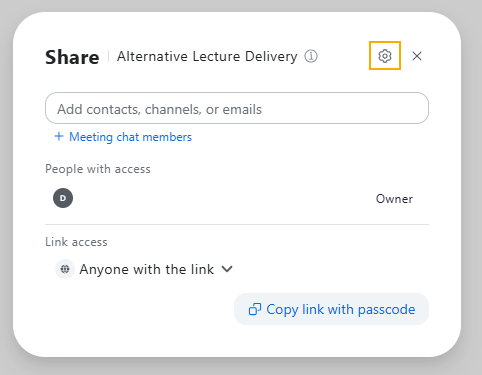
- Select Share from the drop down menu.
- In the pop up window select the cog icon.
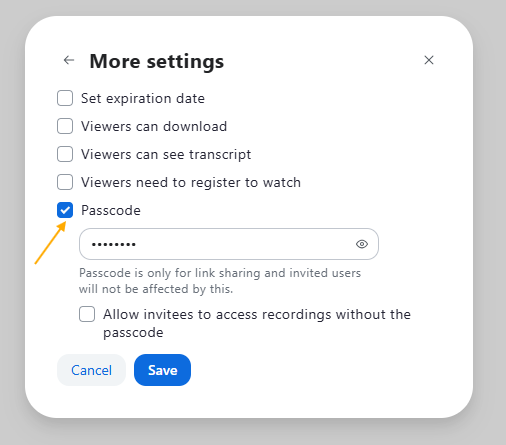
- Untick the Passcode
- Click Save
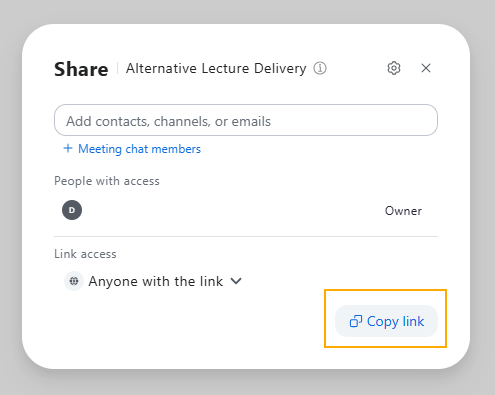
- Click Copy link

- Click Create New
- Select Weblink
- Give the resource a clear title (e.g. ‘Lecture Recording [Date of lecture]’).
- Add the share link to the External Link field.
- Click Save and Close.
- Make sure the unit is visible to students.
While recording your lecture via Zoom and sharing it via Brightspace may be the most direct method to deliver your asynchronous content, alternative methods are available should this approach not meet your needs. Please contact the Business eLearning Team if you would like to discuss this further.
- Follow this guide from IT Services on Setting Up a Brightspace Discussion Forum.
- Need Help? Email: business.elearning@ucd.ie